
Free practice resource
Dental stocktake checklist and inventory spreadsheet
A practical Excel workbook for a structured dental-practice stocktake — the inventory count by room. Record location, current quantity, minimum level, expiry, and whether replenishment is already ordered.
Free · Excel .xlsx · No sign-up required
Published 19 September 2026 · Last updated 19 September 2026 · Author: Reacting
Stock register

What this template helps you do
Use it to carry out a manual stocktake and leave with a clear list of what needs attention.
- Count materials room by room
- Organise items by location and category
- Compare current quantity with a chosen minimum level
- Distinguish REORDER from stock already marked ORDER PENDING
- Review missing counts and expiry or action attention
Inside the workbook
Five sheets: Start here, Stock register, Action list, Count sheets, and Lists. Stock register is where the count is typed. The others support the walk, the review, and the dropdowns.
Stock register
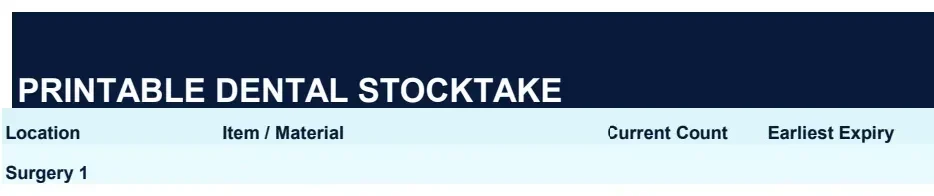
Count sheets
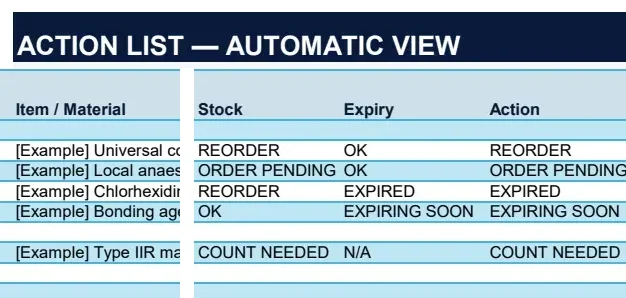
Action list
Free · Excel .xlsx · No sign-up required
How to carry out a dental stocktake
The workbook follows a simple sequence. The first stocktake builds the register. Later counts reuse it.
Set up your locations and categories
On Lists, review the rooms and categories. Add or rename them so they match how your practice actually stores materials — surgeries, decontamination, stock room, reception, and any other area you use.
Print the Count sheets for the first stocktake
Print Count sheets and take them with you. The first count is a walk, not a screen task.
Walk the practice room by room
In each room, write what you find: the item, the quantity on the shelf, and any expiry date on the pack. Count what is physically there, not what someone remembers ordering.
Enter materials into Stock register
Type the walk into Stock register — one row per item in one location. White columns are for you to complete. Delete the example rows when you are ready.
Review Stock / Expiry / Action
The AUTO columns classify each row: whether it is below minimum, already on order, missing a count, expired, or approaching expiry. Open Action list for the rows that need attention.
Deal with actions and use the populated register for future counts
Reorder, follow up pending orders, remove expired stock, or finish incomplete counts. Later stocktakes: filter Stock register by Location and print that list instead of handwriting item names again.
What to record
Each Stock register row is one item in one location. Record Location, Category, Item / Material, Pack / Unit, Current Qty, Minimum Level, Earliest Expiry, Already Ordered?, Qty Ordered, and Notes. Brand / Manufacturer and Supplier are there when you need to tell similar packs apart.
Minimum levels
Minimum Level is the practice’s chosen reorder threshold. The workbook does not calculate it for you, and there is no universal number that fits every material. A useful starting point is typical use plus supplier lead time, then adjust after a few counts. If you have not set a minimum, leave it blank so the row is not marked REORDER by mistake.
Already ordered
An item can sit below minimum while replenishment is already on the way. If Already Ordered? is Yes, Stock shows ORDER PENDING instead of REORDER. That helps the next person not place a second order. It only works if someone marks the order — it does not guarantee duplicates cannot occur.
Expiry dates
Record the expiry shown on the pack or item where it is relevant. If the same material has different expiry dates, use separate rows. That is a counting convention so the earliest date is visible. It is not batch traceability. The warning period on Start here is editable; EXPIRING SOON follows the number of days the practice chooses, not a regulatory rule.
Counting room by room
Materials live where they are used. Counting by location — rather than one mixed list — matches how the practice is walked, and makes it obvious when the same item is held in more than one room.
On the first stocktake, print Count sheets and walk the rooms you actually have: surgeries, decontamination, the stock room, reception or admin, storage, and any other area that holds materials. Not every practice has the same rooms; edit Lists so the names match yours.
After the register is populated, later stocktakes can filter Stock register by Location and print that list. You do not need to recreate the inventory from scratch each time.
After the count: the Action list
Action picks the most immediate issue on that row. It is an operational prompt, not a clinical or regulatory judgement.
- OK
- No immediate action identified by the workbook.
- COUNT NEEDED
- The item exists on the register but Current Qty has not been entered.
- REORDER
- Current Qty is at or below Minimum Level, and the item is not marked as already ordered.
- ORDER PENDING
- Current Qty is at or below Minimum Level, and replenishment is already marked as ordered.
- EXPIRING SOON
- The entered expiry falls inside the workbook’s chosen warning period.
- EXPIRED
- The entered expiry date has passed.
Between stocktakes
When the count is out of date
A spreadsheet is a point-in-time record. Materials are used. Deliveries arrive. Orders are placed. Information changes. The workbook reflects what has been entered.
This resource is for general dental materials and consumables. It is not a controlled-drug register, a medicines-management compliance system, a batch or recall traceability system, or a guarantee of CQC, GDC, HTM or MHRA compliance.
Keeping the stock picture current
Dental Assist is designed for the ongoing operational stock work between manual counts.
Questions about the stocktake template
Straight answers for practices running a manual count.
Include the materials the practice actually holds and reorders: where each item lives, what it is, pack size, current quantity, a minimum level if the practice uses one, the earliest relevant expiry, and whether replenishment is already on order. Brand or supplier details help identify the right pack. It is an operational list, not a legal catalogue of every possible SKU.
Free · Excel .xlsx · No sign-up required